


If you have ever stared at a blurry photo and wondered whether it can be saved, you already know why photo editing software matters. Whether you are retouching a portrait, prepping product shots for an online store, or just cleaning up vacation photos before you share them, the right editor makes the job faster and the results better. The catch is that there are dozens of options out there, and they are not all built for the same kind of user.
Some tools are made for professionals who live inside layers and masks all day. Others are made for people who just want to crop, brighten, and post. This guide breaks down five of the most trusted photo editing tools for PC, covering what each one does best, who it suits, and what it actually costs. Now let us look into the top 5 photo editing software for PC.
1. Adobe Photoshop
Adobe Photoshop is still the name most people think of first when they hear "photo editing." It has been the industry benchmark for decades, and it remains the go-to choice for photographers, retouchers, and designers who need precise, professional-grade control over every pixel. It is best suited for professionals and serious hobbyists who edit regularly and need a deep toolset, not casual users who just want a quick fix.
Key Features
-
Layer-based editing with adjustment layers, blend modes, and non-destructive smart objects
-
Advanced retouching tools including healing brush, clone stamp, and frequency separation
-
AI-powered Generative Fill, Generative Expand, and smart object selection
-
Camera Raw support for professional-grade photo processing
-
Deep integration with Lightroom, Illustrator, and the rest of Adobe Creative Cloud
-
Available on Windows, macOS, iPad, and web with cloud document syncing
Ratings
Capterra: 4.8/5
Digital Camera World: 4.0/5
Pros and Cons
Pros
-
Unmatched depth of professional editing tools
-
Constant updates with genuinely useful AI features
-
Massive community, tutorials, and plugin ecosystem
-
Works seamlessly with other Adobe apps
Cons
-
Subscription-only, with no one-time purchase option
-
Steep learning curve for beginners
-
Can feel resource-heavy on older machines
-
Generative AI credits are limited on the base plan and require top-ups for heavy use
Pricing
Photoshop is sold only as a subscription. The standalone Photoshop plan runs $22.99 per month, billed annually, and includes 100GB of cloud storage plus 25 monthly generative credits. The Photography plan, which bundles Photoshop with Lightroom and 1TB of storage, costs $19.99 per month and is often the better deal for photographers.
Adobe also offers Creative Cloud Pro, which unlocks Photoshop plus 20-plus other apps, normally priced at $69.99 per month, with promotional discounts often available for new subscribers. A 7-day free trial is available on every plan, and there is no permanent free version.
How the Fileion Team Analyzed and Picked This Tool
We evaluated Photoshop based on editing depth, AI feature quality, cross-device performance, and long-term value against its subscription cost, weighing it against tools that offer similar power without recurring fees.
2. GIMP
GIMP, short for GNU Image Manipulation Program, is a free and open-source image editor that has been around since the mid-1990s. It is aimed at users who want Photoshop-level capability without paying for it, including students, hobbyists, and budget-conscious freelancers who do not mind a slightly steeper learning curve.
Key Features
-
Full layer, mask, and selection toolkit comparable to commercial editors
-
Over 160 built-in filters and effects, expandable with community plugins
-
Scripting support through Script-Fu, Python-Fu, and Perl for automation
-
Support for a wide range of formats, including PSD, RAW via plugin, TIFF, and XCF
-
Batch processing for editing large numbers of images at once
-
Cross-platform availability on Windows, macOS, and Linux
Ratings
G2: 4.3/5
Capterra: 4.4/5
Pros and Cons
Pros
-
Completely free with no hidden costs or watermarks
-
Genuinely powerful toolset for a free program
-
Open-source, so anyone can inspect or modify the code
-
Compatible with many Photoshop-style plugins
Cons
-
Interface feels less polished and less intuitive than paid competitors
-
No built-in cloud sync or mobile app
-
Update cycles can be slow and unpredictable
-
Steeper learning curve for anyone coming from a more modern UI
Pricing
GIMP is entirely free to download and use, with no premium tier, subscription, or paywalled features. Support comes from community forums and documentation rather than a dedicated help desk.
How the Fileion Team Analyzed and Picked This Tool
Our evaluation focused on how close GIMP gets to commercial-grade editing without a price tag, along with plugin support, format compatibility, and how actively the open-source community maintains it.
3. Affinity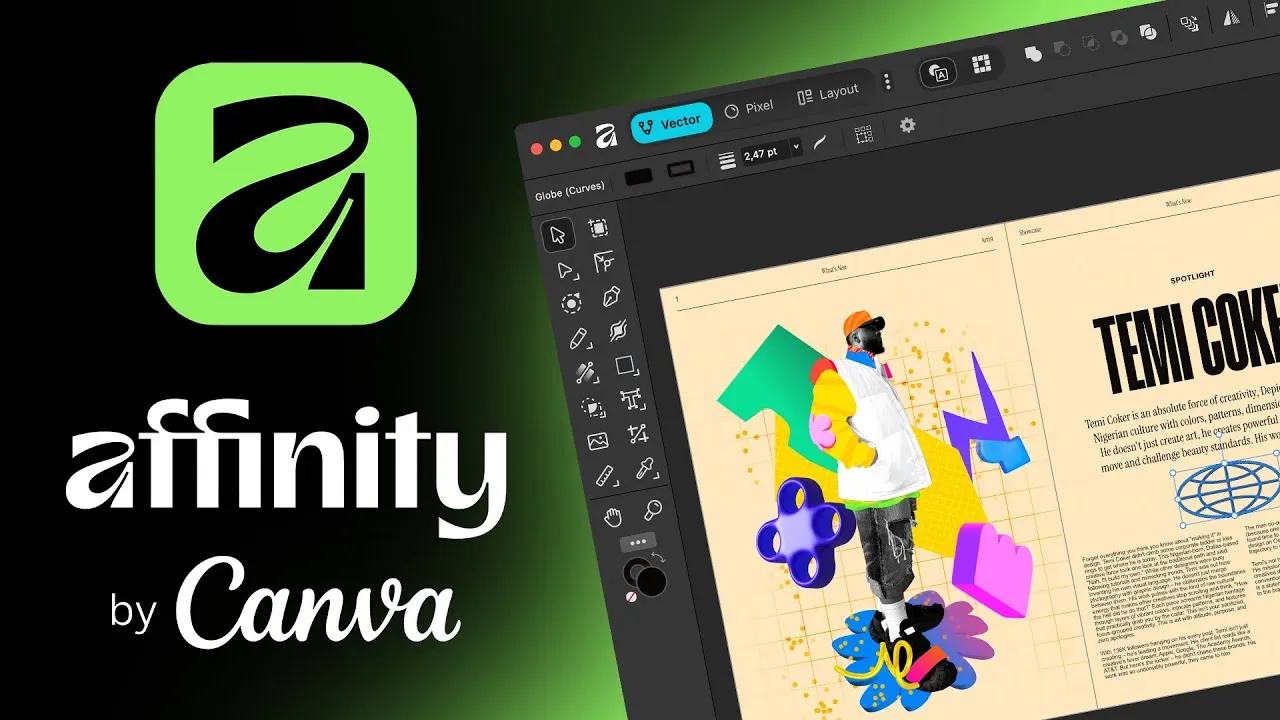
Affinity, now owned by Canva, was long known as the go-to one-time-purchase alternative to Photoshop. In late 2025, Canva relaunched it as a single unified app combining photo editing, vector design, and page layout, and made the entire core toolset free to use. It suits photographers and designers who want professional-grade editing without an ongoing subscription for the core tools.
Key Features
-
Non-destructive RAW development, frequency separation, and Liquify tools
-
HDR merge, panorama stitching, and focus stacking for photographers
-
Full vector and layout tools included in the same app as photo editing
-
Strong PSD file compatibility for working alongside Photoshop users
-
Optional AI tools like Generative Fill and background removal through a connected Canva account
-
Available on Windows and macOS, with iPad support in progress
Ratings
PCMag: 4.5/5
Amateur Photographer: 4.5/5
Pros and Cons
Pros
-
Core professional editing suite is completely free
-
No subscription required for standard tools
-
Combines photo, vector, and layout work in one app
-
Strong file compatibility with Adobe formats
Cons
-
AI-powered features require a paid Canva subscription
-
No built-in digital asset management or photo catalog system
-
Smaller plugin ecosystem compared to Photoshop
-
Newer unified apps cannot open files created in the older Affinity apps in reverse
Pricing
The core Affinity app, including photo, vector, and layout tools, is free with a Canva account. AI-powered features such as Generative Fill and Generative Expand require a paid Canva plan, with Canva Pro starting around $15 per month or roughly $120 billed annually. Existing owners of older Affinity V1 and V2 perpetual licenses can continue using those versions independently.
How the Fileion Team Analyzed and Picked This Tool
We looked at how much Affinity's professional toolkit remains free after the Canva relaunch, how it compares to Photoshop on core editing depth, and whether the AI paywall meaningfully limits everyday photo editing work.
4. Canva
Canva is not a traditional pixel editor, but it has become one of the most widely used photo and design tools for everyday content creation. It is best suited for social media managers, marketers, small business owners, and anyone who wants fast, template-driven editing without a steep learning curve.
Key Features
-
Drag-and-drop editor with over a million templates for social posts, flyers, and more
-
One-click Background Remover and Magic Resize for repurposing designs across platforms
-
Access to a large stock library of photos, videos, and graphics
-
Brand Kit tools for keeping colors, fonts, and logos consistent across projects
-
Magic Studio AI suite covering image generation, editing, and text tools
-
Real-time collaboration for teams working on the same design
Ratings
<u>Capterra</u>: 4.7/5
<u>G2</u>: 4.7/5
Pros and Cons
Pros
-
Extremely easy to learn, even for total beginners
-
Huge template and stock asset library
-
Great for quick social media and marketing content
-
Generous free plan that covers most casual needs
Cons
-
Not built for detailed, pixel-level photo retouching
-
Premium assets and advanced tools are locked behind Pro or Business plans
-
AI usage is capped by a shared monthly credit pool
-
Per-seat pricing can add up quickly for larger teams
Pricing
Canva offers a permanent free plan with core design tools, 5GB of storage, and access to a smaller asset library. Canva Pro costs around $15 per month, or about $120 when billed annually, and unlocks the premium content library, Background Remover, Brand Kit, and expanded AI credits. Canva Business is priced per user, typically around $25 per month per seat, and adds team collaboration and brand management tools. Enterprise pricing is custom and available on request.
How the Fileion Team Analyzed and Picked This Tool
We assessed Canva on ease of use, template and asset quality, and how well its photo editing tools serve non-designers compared to dedicated pixel editors, rather than judging it purely against Photoshop-style depth.
5. Pixlr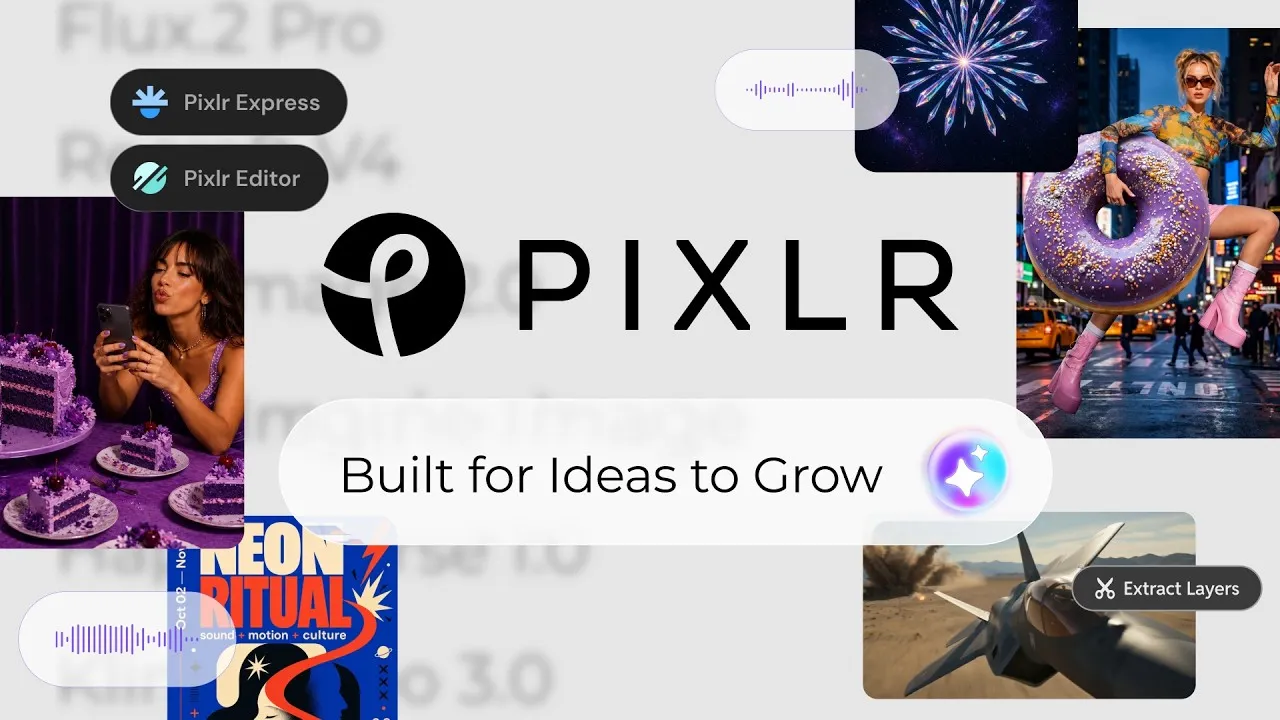
Pixlr is a browser-based photo editor that has built a reputation as a lightweight, budget-friendly alternative to desktop software. It works well for casual users, students, and small businesses who want Photoshop-style editing without installing anything or paying a large monthly fee.
Key Features
-
Two editor modes: Pixlr X for quick one-click edits and Pixlr E for layer-based advanced editing
-
AI tools including background removal, generative fill, and object removal
-
Large library of templates for social media graphics and collages
-
Batch editing for processing multiple images at once
-
Works entirely in the browser, with optional desktop and mobile apps
-
Supports common formats including PSD, JPEG, PNG, and WebP
Ratings
Pros and Cons
Pros
-
Works instantly in the browser with no installation
-
Genuinely capable free tier for basic and AI-assisted editing
-
Paid plans are among the cheapest in the category
-
Good balance of beginner and advanced tools across Pixlr X and Pixlr E
Cons
-
Free tier includes ads and a limited daily export cap
-
Advanced editing feels less refined than a full desktop application
-
Performance can lag on larger, more complex image files
-
Pricing tiers and credit limits have shifted frequently, so it is worth checking current terms before subscribing
Pricing
Pixlr offers a free plan with ads, limited AI credits, and a daily export limit. Paid plans start at around $2 to $5 per month for the entry-level Plus tier and go up to roughly $15 to $30 per month for Premium and Creative Pack tiers, which add more AI credits, stock content, and ad-free editing. Pricing has changed more than once in recent periods, so checking Pixlr's official pricing page before subscribing is a good idea.
How the Fileion Team Analyzed and Picked This Tool
We evaluated Pixlr on how much real editing power it offers for free, how its paid tiers compare cost to competitors, and whether the browser-based approach holds up for everyday editing tasks.
Comparison Table
|
Software |
Best For |
Platform |
Price |
Fileion Rating |
|
Adobe Photoshop |
Professional-grade editing and retouching |
Windows / macOS |
Paid, from $19.99/mo |
4.5 /5 |
|
GIMP |
Free, open-source advanced editing |
Windows / macOS / Linux |
Free |
4.3/5 |
|
Affinity |
Free professional editing suite |
Windows / macOS |
Free (AI features paid) |
4.6/5 |
|
Canva |
Quick, template-based design and edits |
Windows / macOS / Web |
Free / Paid, from $15/mo |
5.0/5 |
|
Pixlr |
Browser-based budget editing |
Web / Windows / macOS |
Free / Paid, from ~$2/mo |
4.4 /5 |
Final Verdict
There is no single best photo editing software for everyone; it really comes down to what you need and how much you are willing to spend. If you edit photos professionally and need the deepest toolset available, Adobe Photoshop is still the standard, even with its subscription cost. If you want that same level of power without paying anything, GIMP and the newly free Affinity are both strong picks, with Affinity edging ahead for photographers thanks to its cleaner interface and RAW editing tools. For quick social media content and marketing graphics, Canva is hard to beat on speed and simplicity. And if you just need a capable editor in your browser without installing anything, Pixlr covers the basics and then some at a low cost. Match the tool to the job, and you will spend less time fighting the software and more time actually editing.
FAQs
What is the best free photo editing software for a PC?
GIMP and Affinity are the strongest free options. GIMP has been free and open-source for decades, while Affinity's core toolset became free after its relaunch under Canva in late 2025.
Is Adobe Photoshop better than Affinity?
Photoshop has a larger plugin ecosystem, deeper AI features, and tighter integration with other Adobe apps, but Affinity now offers a comparable core editing toolset for free, making it a strong choice for anyone who does not need Photoshop's full ecosystem.
Which photo editing software is best for beginners?
Canva and Pixlr are both easier to learn than Photoshop, GIMP, or Affinity, since they rely on simpler interfaces and template-driven workflows rather than a full professional toolset.
Do I need a subscription to edit photos professionally?
Not anymore. Affinity's core suite and GIMP are both free and capable of professional-level editing, though Photoshop still leads in AI features and third-party plugin support if you are willing to pay for it.
What should I look for in photo editing software?
Consider what you actually need: layer support and RAW processing for serious editing, template libraries for quick social content, and check whether the pricing model is a one-time cost, a subscription, or genuinely free before committing.


